
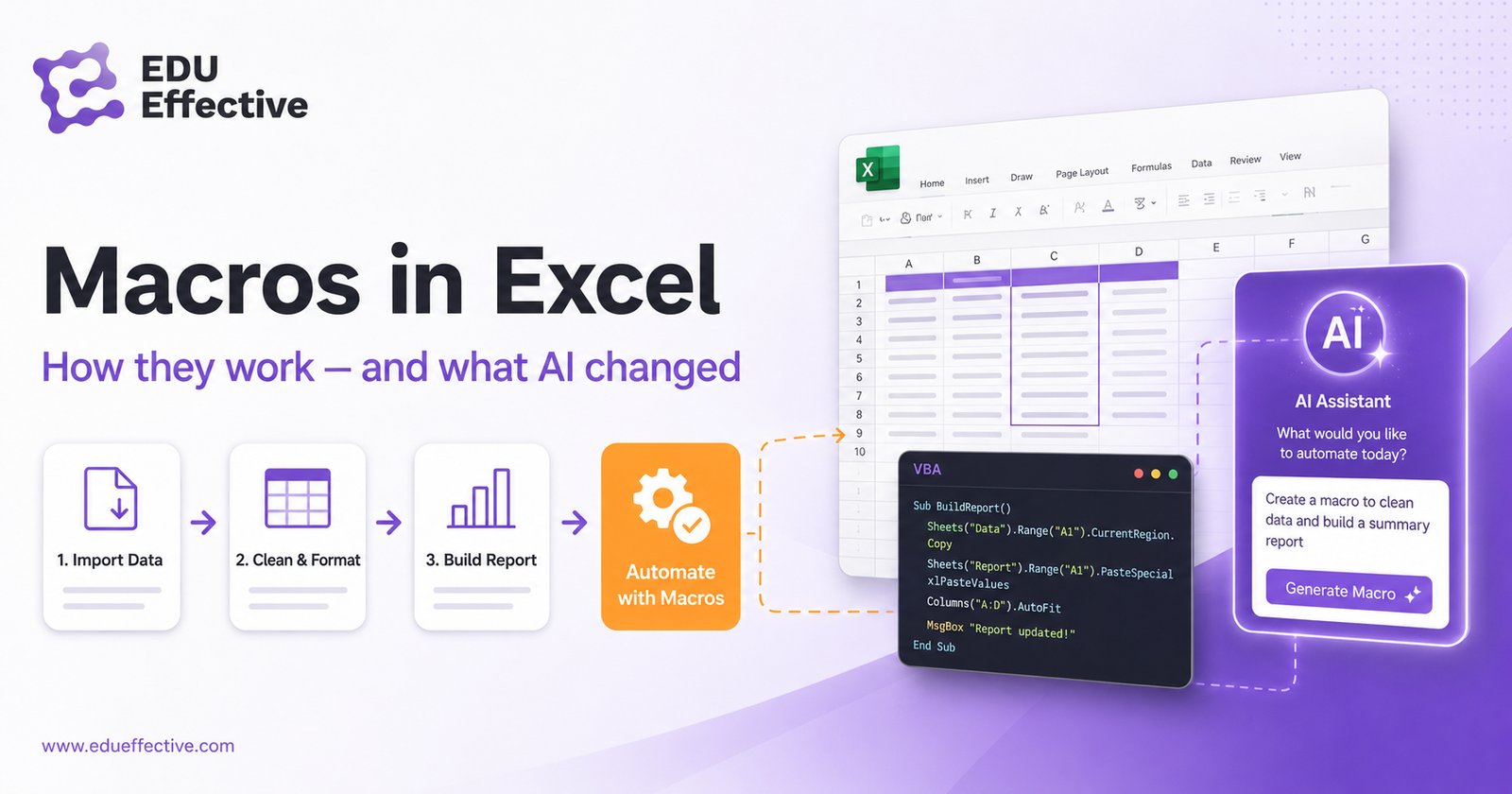

Open any spreadsheet-heavy role — financial analyst, operations manager, HR coordinator, data team — and you will find someone doing the same sequence of steps every day: paste data, reformat the headers, apply conditional formatting, generate the summary, export to PDF, send.
That sequence takes twenty minutes manually. As a macro in Excel, it takes twenty seconds. The macro does not get the formatting wrong on a Friday afternoon, and it does not skip a step when there is a deadline. It just runs.
Here is what macros in Excel actually are, how to create them without a computer science degree, and how the AI tools now embedded in Microsoft 365 are making the whole process considerably more accessible.
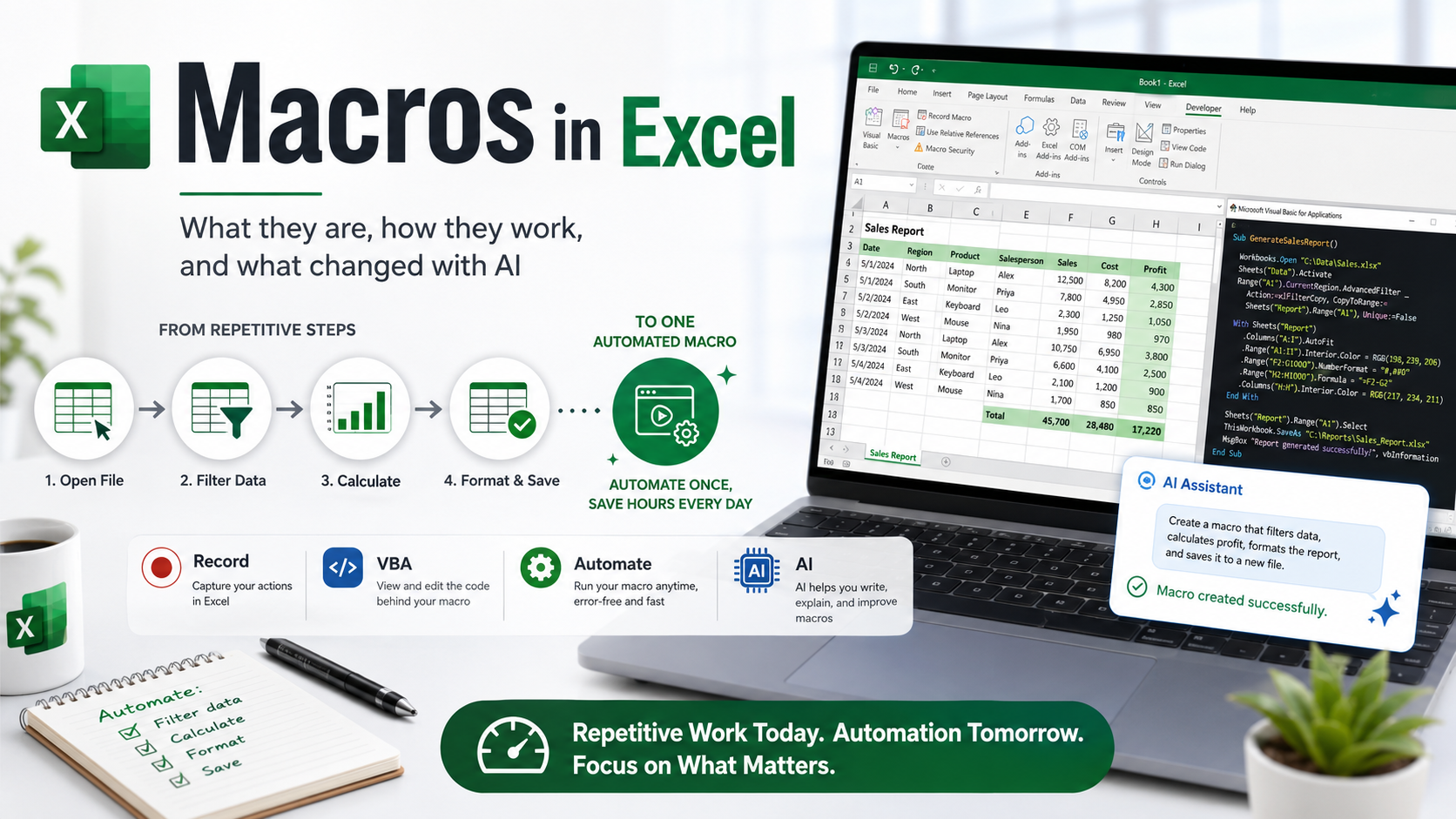
What a macro in Excel actually is
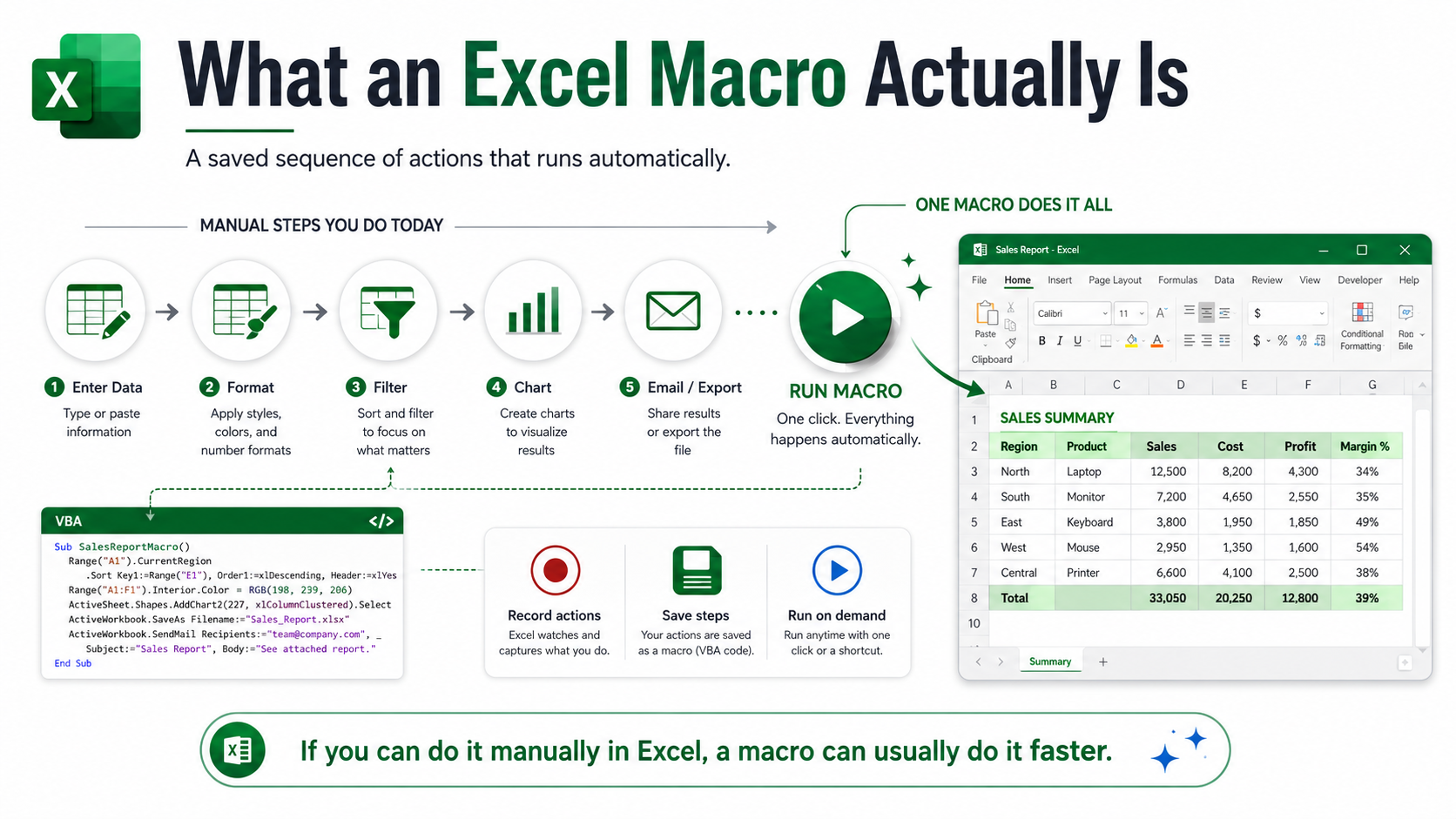
A macro is a saved sequence of instructions that Excel executes automatically. You define the sequence once — either by recording your own actions or by writing code directly — and Excel replays it on demand, in seconds, every time you need it.
Under the hood, macros in Excel are written in VBA: Visual Basic for Applications, a programming language built into Microsoft Office applications since the 1990s. When you use the Macro Recorder, Excel writes the VBA code automatically in the background. When you write a macro yourself, you work directly in the Visual Basic Editor, available from the Developer tab.
The range of work macros can automate is genuinely broad: data entry and cleaning, cell formatting, conditional logic, pivot tables, charts, filtering, sorting, emails, and report generation. If you can do it manually in Excel, a macro can almost certainly do it faster.
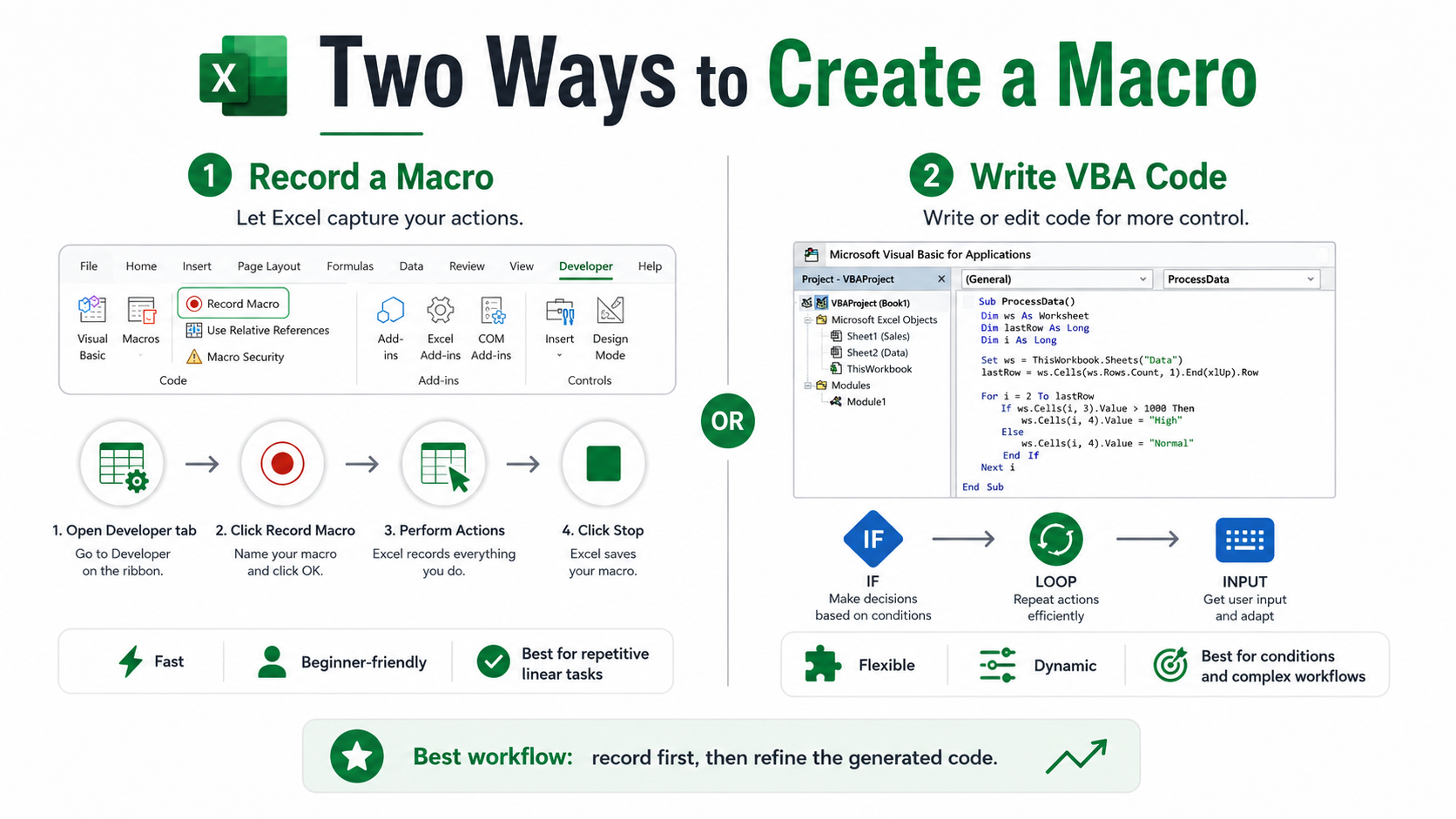
Two ways to create a macro — and when to use each
Recording a macro is the beginner-friendly path. Enable the Developer tab in Excel's ribbon settings, click “Record Macro,” perform the actions you want to automate, then click “Stop Recording.” Excel captures every action and converts it into VBA code automatically.
Recording works well for linear, straightforward tasks: formatting a specific range, applying a filter, or rearranging columns. The recorded code can be rigid, referencing specific cells and ranges instead of adapting to variable data. But for repetitive formatting and data-entry workflows, it is often good enough without modification.
Writing VBA directly gives you control that recording cannot. You can write logic: if a value exceeds a threshold, do this; loop through every row; ask the user for input before running. For conditions, loops, or dynamic data ranges, you need VBA code rather than recorded actions.
The two approaches are complementary. A practical workflow is to record a macro first, then refine the generated code in the Visual Basic Editor to add the logic and flexibility you need.
The practical setup: enabling macros in Excel
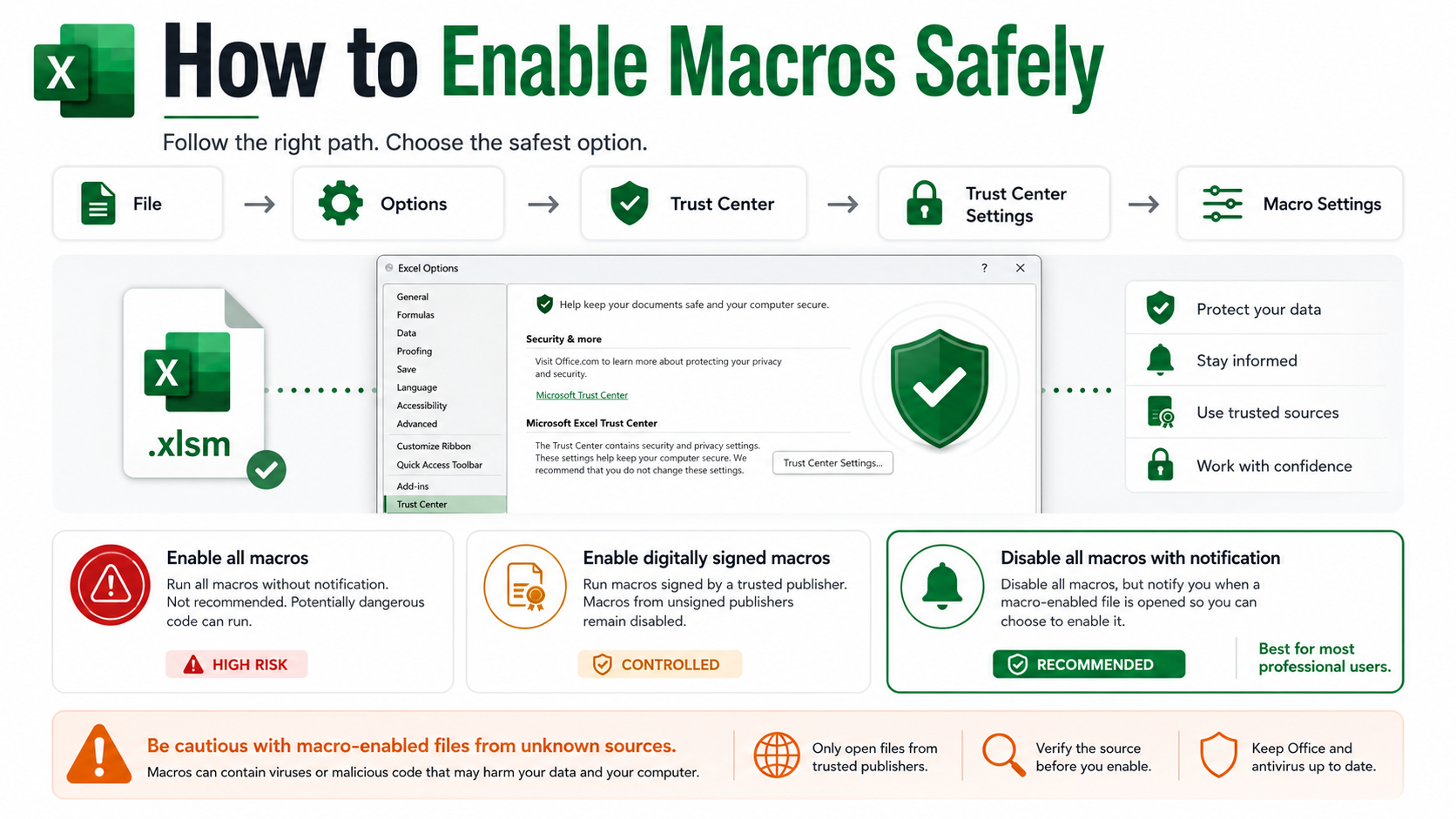
By default, Excel disables macros as a security measure. Macro-enabled .xlsm files can execute hidden code, making them a possible vector for malicious scripts. This is a real risk worth taking seriously, not just a bureaucratic inconvenience.
To enable macros for a specific workbook, go to File → Options → Trust Center → Trust Center Settings → Macro Settings. You can enable all macros, enable only digitally signed macros, or disable all macros with notification. For most professional contexts, “Disable all macros with notification” is the right setting: Excel asks each time whether to enable macros in a specific file, giving you control without removing the feature entirely.
Be cautious about macro-enabled files from unknown sources. The security warnings Excel displays exist for a reason.
What has changed: AI and macros in Excel
The landscape of Excel automation has shifted considerably. The most significant change is the integration of Microsoft Copilot into Microsoft 365, including Excel.
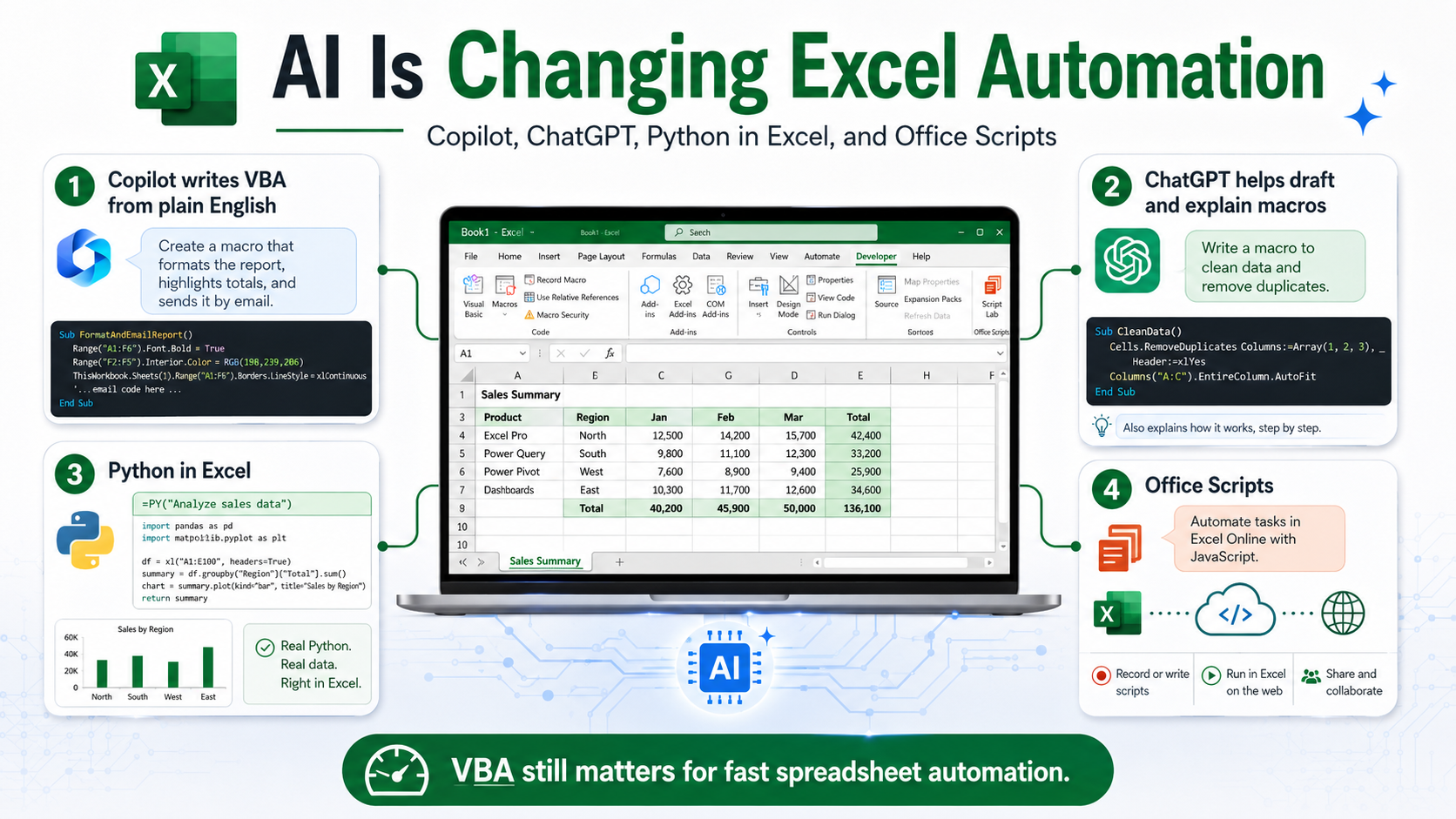
Copilot can write VBA code from a plain-language description. Instead of opening the editor and typing syntax you half remember, you can describe what you want: “Write a macro that highlights any cell in column B where the value exceeds 500 in red.” Copilot generates the code for you to run, review, and modify. That has lowered the barrier to VBA substantially.
ChatGPT and other AI tools offer a similar capability outside Excel. Describe your workflow in plain English, ask for VBA code, paste it into the editor, and run it. The code may need light editing, but it provides a starting point that could take a beginner hours to write from scratch.
Microsoft has also introduced Python in Excel for Microsoft 365 users. For data analysis, machine learning, and statistical work, Python in Excel is more capable than VBA. But for spreadsheet workflow automation — formatting, report generation, file operations, and sending emails — VBA macros remain the faster, more integrated option. They solve different problems.
For cloud-first organisations, Office Scripts is a JavaScript-based automation option designed for Excel Online. If your organisation works primarily in Excel through Teams, SharePoint, or OneDrive rather than the desktop application, it is worth investigating as an alternative to VBA, which does not run in the web version.
The trade-offs worth knowing before you start
VBA macros are powerful, but they have real limitations. Version compatibility can be an issue: macros written in older Excel versions can behave unexpectedly in newer ones, and periodic updates can occasionally break existing macros in ways that need debugging.
Sharing macros across a team also introduces security considerations. A macro file distributed without vetting can be an attack vector, so any macro shared widely should be reviewed before distribution.
VBA is not transferable to other environments because it is specific to Microsoft Office. If you want skills that translate more broadly, Python is the better long-term investment for data and automation work. But if you work in Excel daily and want automation that runs in seconds without additional tooling, VBA macros remain the most direct path.
At EDU Effective, we build programs for professionals who want to work smarter — not just harder. Explore our programs →
EDU Effective Business School = professional development for your long-term success.
All best-selling Effective MBA programs are built for working adults: 15 minutes a day, 10 months or less, ASIC accredited, from €990.
These are professional programs, not academic ones — built for working adults to apply what they learn directly in their own business, not to collect a scholarly credential.
Join more than 9,000 students in over 120 countries around the world to further your personal development and career success.
Read the feedback and experiences of our students and the stories of our graduates here.
Apply now — from €990 · Talk to a Study Advisor
Study with NO risk: 14-day money-back guarantee, no questions asked.
Sources
- Elice — Excel Automation: Work Smarter with Copilot, VBA, and ChatGPT https://elice.io/en/resources/blog/excel-vba
- XelPlus (Leila Gharani) — Python in Excel vs VBA: When to Use Each One https://www.xelplus.com/python-in-excel-vs-vba/
- Excel Logics — VBA Macros with Copilot: Your 2026 Automation Guide https://excellogics.co/blog/vba-macros-copilot-automation-2026-guide/
- MacrosInExcel.com — Excel AI Integration https://www.macrosinexcel.com/excel-ai-integration-using-copilot-and-chatgpt-with-vba-for-smart-automation/
- Microsoft — Excel Developer tab and VBA documentation https://support.microsoft.com/en-us/office/create-or-run-a-macro-c6b99036-905c-49a6-818a-dfb98b7c3c9c